
STORM II AI Video
Only upload photos of yourself or of people who agreed to take part.
One photo, a sea of pink coats, your character in the middle.
STORM II AI Video: Make Your Character the Center of the Storm
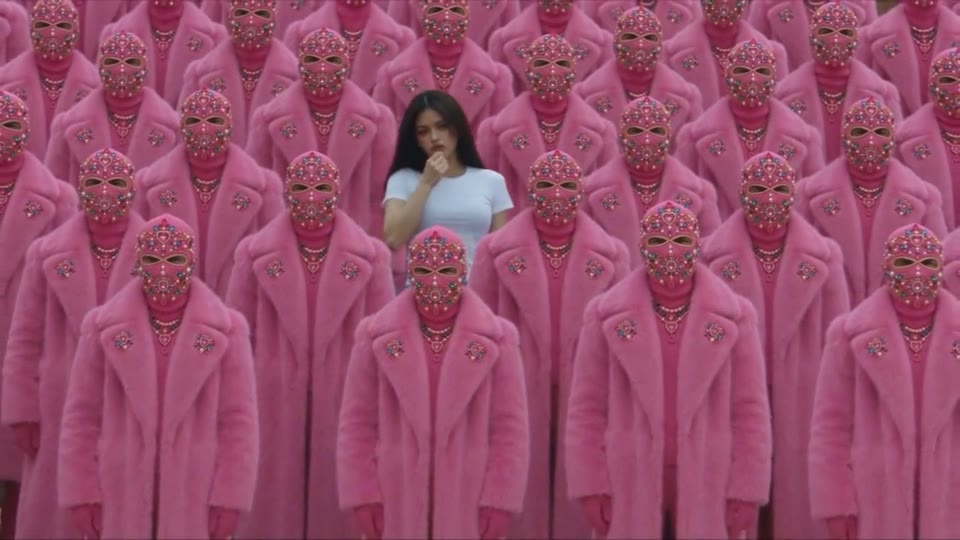
Make a STORM II AI video from one photo and put your main character at the heart of the STORM trend. The set piece is striking: a vast, ordered crowd in oversized pink faux-fur coats and jeweled masks, with one person who still looks like themselves walking through it. The template builds the whole moment around your upload, with no choreography, filming or editing. Your clip arrives with the beat already included.
Whether you call it a crowd-dance clip or search for STORM 2 dance, the idea is simple: one hero, a uniform crowd and a synchronized wave on the beat. this template creates a new video starring the person in your photo, inspired by the trend. It is an AI dance video from photo input alone: pick the frame, quality and length, and your finished clip is usually ready in one to three minutes.
- One character photo
- No dance filming
- Rising cinematic camera
- Original electronic beat
How to Create a STORM II AI Video
A crowd-dance clip takes four steps and one photo; the template handles the crowd, camera and music.
Upload your main character
Start your finished clip with one clear photo of yourself, a willing friend, or an original character or mascot with a readable face. The template works best with good light and simple clothes that stand out against pink.
Pick the frame
Keep the default 16:9 to show the full STORM trend crowd, switch to 9:16 for vertical feeds, or choose 1:1 for square posts. Every format keeps the same set piece and camera move in your finished clip.
Choose quality and length
Select 480p or 720p (default) and 5, 10 (default) or 15 seconds for your finished clip. The template shows the exact credit cost next to the Generate button before you start, from 19 credits.
Generate and review
Click Generate and your finished clip is usually ready in one to three minutes. Check the face, hair and outfit, then download the MP4 or run another take; each new the template take uses credits again.
STORM Dance Video AI: Pink Crowds and Cinematic Motion
The STORM trend works on contrast: one recognizable person in a perfectly uniform crowd, and the template builds it around your photo.
One Photo Becomes a STORM II AI Video
Each new clip starts with a single upload, and that photo decides who the story is about. Use yourself, someone who agreed to take part, or an original character or mascot with a readable face. The generated clip keeps the main character's face, hair, skin tone and outfit consistent from first frame to last, while everyone around them vanishes behind identical pink coats and masks. Because the template works from a still image, nobody has to film a performance or dance on camera. That contrast is why a crowd-dance clip reads instantly: one real-looking lead in a crowd where every other face is hidden.
A STORM II Dance Crowd That Moves as One
The crowd is the second star of each new clip. Rows of identical figures in oversized pink faux-fur coats, heads hidden under ornate jeweled pink masks, stand shoulder to shoulder and fill the frame. Your character weaves between the rows, glances back at the camera, stops at the center and strikes a confident pose. On the beat, the whole pink crowd sways in unison, then bows forward in one synchronized wave around them. That bow is the STORM II dance moment, and the template stages it with no choreography, extras or rehearsal. You bring the lead; the generated clip brings a crowd that never misses a count.
A Cinematic Camera and an Original Beat
A crowd-dance clip is shot like a music-video scene, not a slideshow. A slow cinematic tracking shot follows your character through the rows, then rises into a high wide angle that reveals how far the crowd stretches. Soft overcast daylight keeps the rich pink palette even and the faux fur detailed. Underneath runs an original dark, pulsing electronic pop beat: The template generates picture and audio together, so your finished clip arrives as one MP4 with music in the mix. It never reuses an existing song, lyrics or a real artist's voice, so each new clip is your own take on the STORM trend.
STORM Dance Video AI Settings for Every Feed
Your finished clip can match wherever you post it. Keep the default 16:9 for a wide view of the crowd on YouTube, switch to 9:16 for Reels, Shorts and TikTok, or choose 1:1 for square feeds. Resolution is 480p or 720p (the default), and length is 5, 10 (the default) or 15 seconds. The template shows the exact credit cost next to the Generate button before you start, so you always know the price: 19, 38 or 57 credits at 480p and 41, 82 or 123 credits at 720p. Most crowd-dance video clips are ready in one to three minutes, and no editing is needed before you download.
Photo Dance Videos for Reels, Stories and Music Edits
a template clip can be a joke, a character reveal or a fresh post; here is where the STORM trend fits best.
Your STORM II Dance Debut
Camera-shy? A crowd-dance clip lets you join the STORM trend without dancing on camera. Upload a favorite photo of yourself and let the pink crowd do the moving while you walk to the center. The template turns one still picture into a dance moment worth sharing.
Character and Mascot Reveals
Introduce an original character or mascot with an entrance instead of a static image. If the design has a readable face, the generated clip keeps its look consistent as it crosses the crowd, a playful way to debut a persona, a club mascot or a comic hero with the template.
A Fresh STORM Trend Post for Your Feed
Break up a feed of photos with a 9:16 crowd-dance video. The moody pink set piece can tease a new look, a playlist or an event, and the original beat makes it ready to post. Label your finished clip as an AI remix so followers know how it was made.
Friendly STORM Dance Video AI Challenges
Invite friends to make their own crowd-dance video, each from a photo of themselves they chose to share. Everyone uses the same the template, yet each character brings a different outfit and attitude. Post the results side by side and vote on the best walk to the center.
STORM Trend Ideas for Your Next Short Video
Six ways to post the STORM trend, each with a caption idea and one photo in the template.
The Monday Morning STORM II AI Video
Upload a photo of yourself in work clothes and let the pink crowd bow as you arrive. Post the 9:16 crowd-dance video with a deadpan caption like "walking into the Monday meeting" and let the contrast land the joke.
A Birthday STORM II Dance Entrance
With the birthday person's permission, make a crowd-dance clip starring them and drop it in the group chat on the day. A caption like "the main character has arrived" lands just as the template crowd bows around them.
Your Mascot Takes Over the STORM Trend
Give a club, team or comic mascot a dramatic entrance: upload a clean image where its face reads clearly, and the template builds a 1:1 crowd-dance video around it. Caption it as the mascot's big arrival.
One Photo In, STORM II AI Video Out
Post the source photo as slide one and the finished crowd-dance video as slide two. The carousel explains the template at a glance; caption it "one photo in, one storm out" and add an AI remix label.
A STORM II AI Video Outfit Reveal
Wear a light outfit that pops against pink, take a full-length photo and turn it into a 9:16 crowd-dance video. List each piece in the caption; the template crowd frames the look like a runway.
A STORM 2 Dance Relay With Friends
Each friend makes a crowd-dance clip from their own photo; post the clips as a numbered series. Tag the next person in every caption so the STORM 2 dance relay keeps moving, and mark each clip as an AI remix.
Photo Tips for Clear Subjects and Crowd Scenes
A clear main character makes your finished clip stronger.
Works best
- One person, face clearly visible
- Outfit in view, half or full body
- Plain, light clothes that pop against pink
- Good light, sharp focus
Avoid
- Group photos with several faces
- Pink or furry outfits that blend in
- Dark, blurry or heavily filtered photos
- Photos of people who have not agreed to take part
What Creators Say About EveryGen’s AI Video Workflow
Feedback from the existing EveryGen image-to-video workflow behind photo-based creative effects.
We now produce campaign videos from existing image assets in a fraction of the time.
Sophie L., Content Marketer
Sophie L.
Content Marketer
Image-to-video helped us upgrade product pages without expensive shoots.
Ryan T., E-commerce Operator
Ryan T.
E-commerce Operator
The prompt controls are practical and outputs are strong for rapid iteration.
Mia W., Creative Producer
Mia W.
Creative Producer
More AI Video Templates Like STORM II AI Video
Try another trending effect with the same photos.
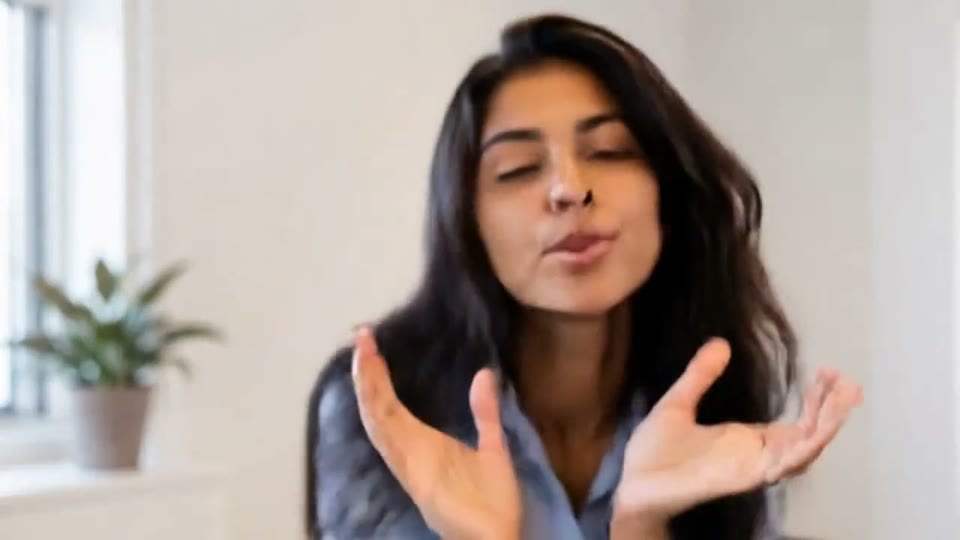
AI Face Dance Generator
A portrait comes alive with a playful face-and-hands dance.
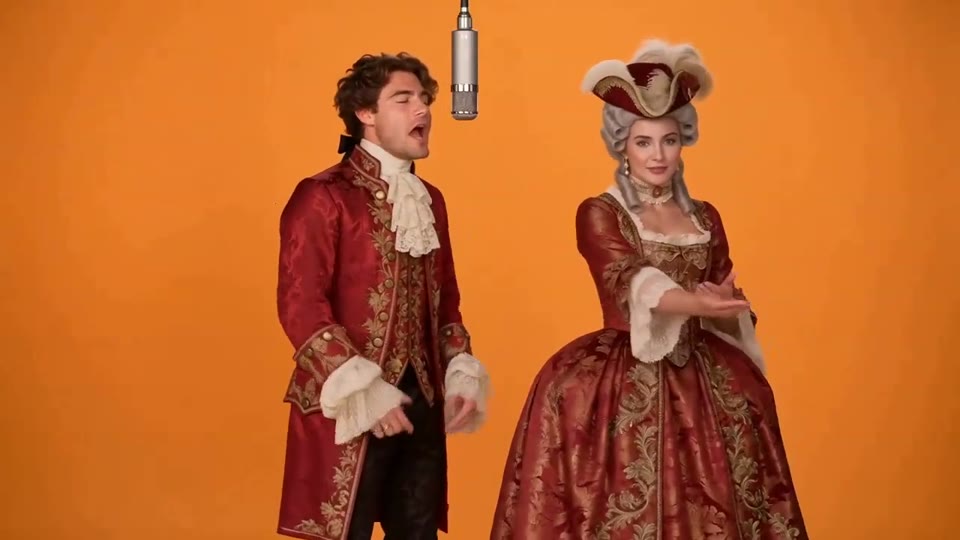
Hotel Lobby AI Video
Two photos become a baroque rap duet on an orange stage.
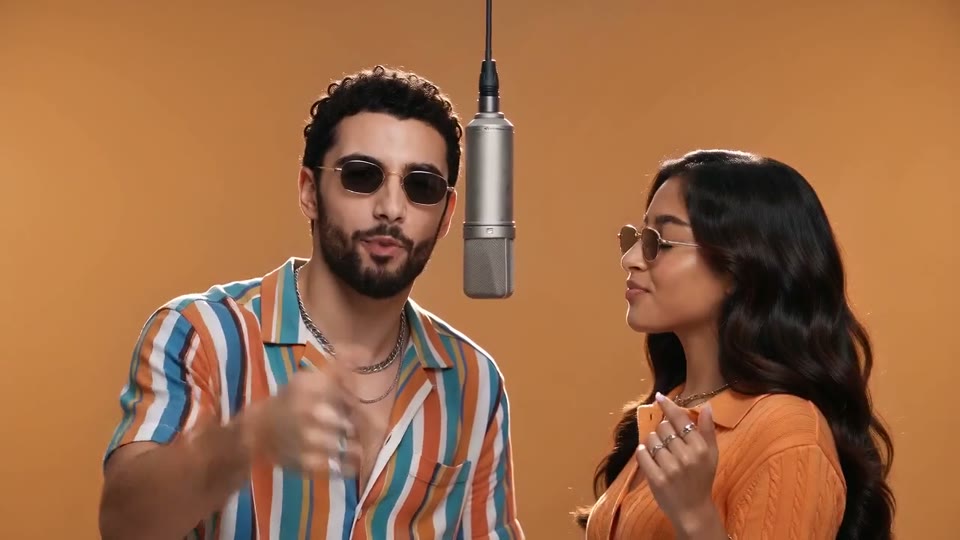
AI Rap Duo Video
You and a friend trade verses in bold streetwear.
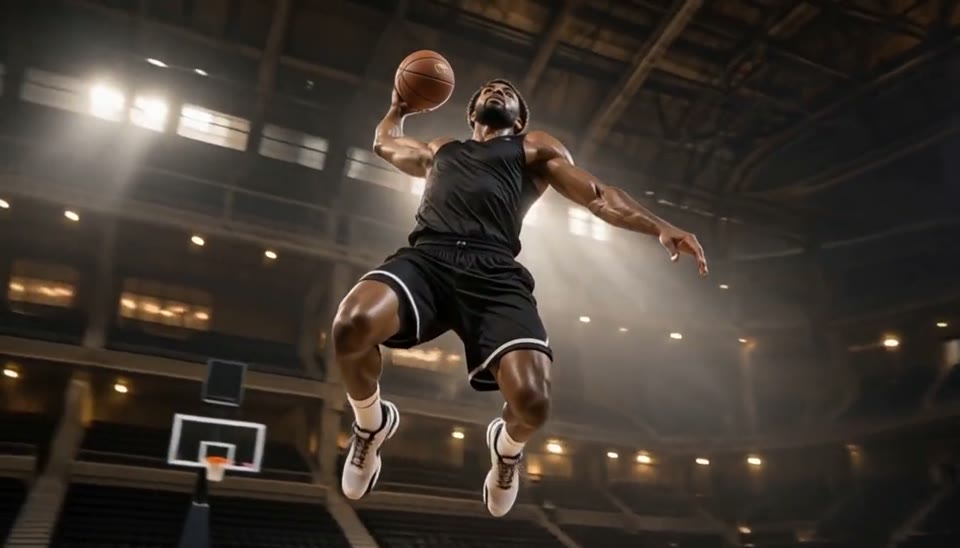
Bullet Time Video
Freeze an action pose while the camera orbits around it.
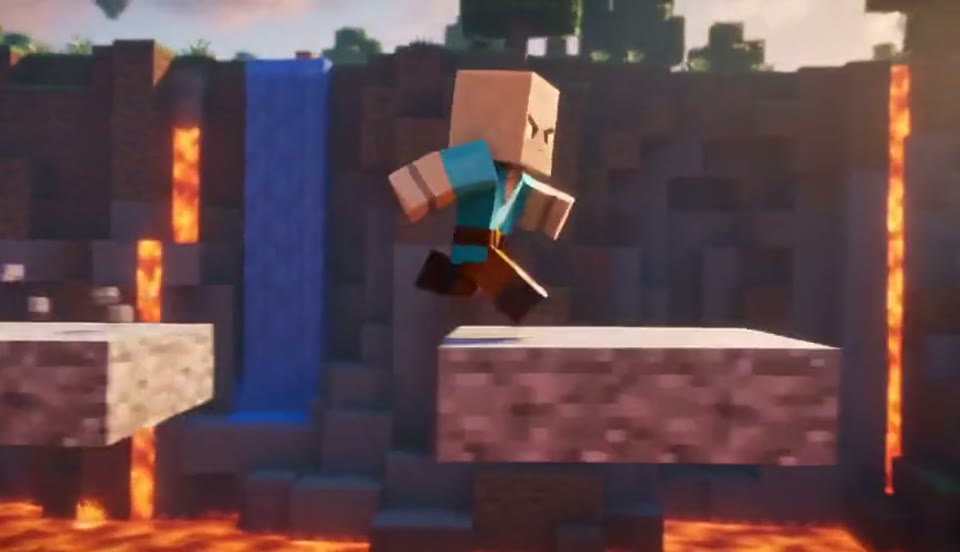
AI Minecraft Video Maker
Create a Minecraft-style AI video from one photo. Make voxel characters, block-world parkour and adventure clips with original sound on EveryGen.
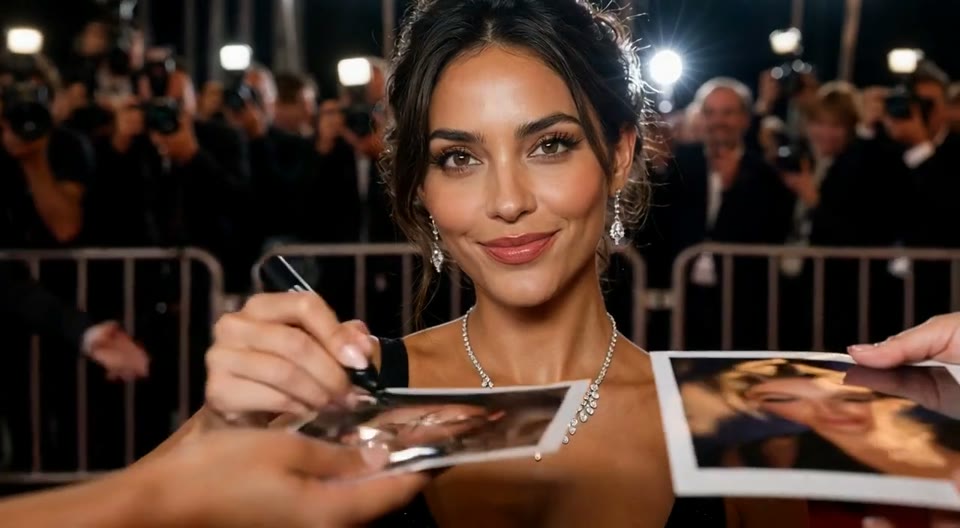
AI Red Carpet Video
Create an AI red carpet video from one portrait. Add elegant eveningwear, paparazzi flashes and a gala entrance with the EveryGen video template.
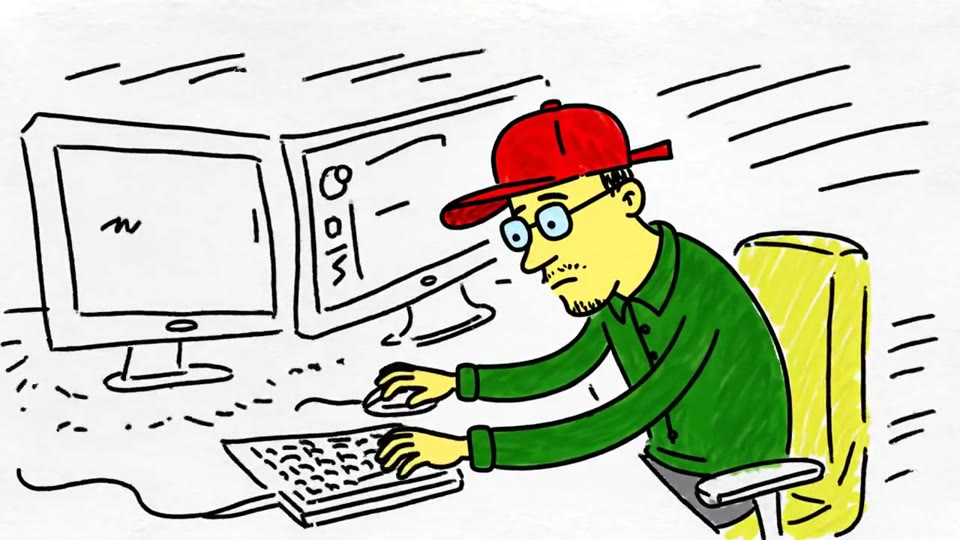
Sketch to Video AI
Turn a sketch, drawing or line-art image into an animated video with EveryGen. Preserve the composition and art style with gentle motion and original sound.
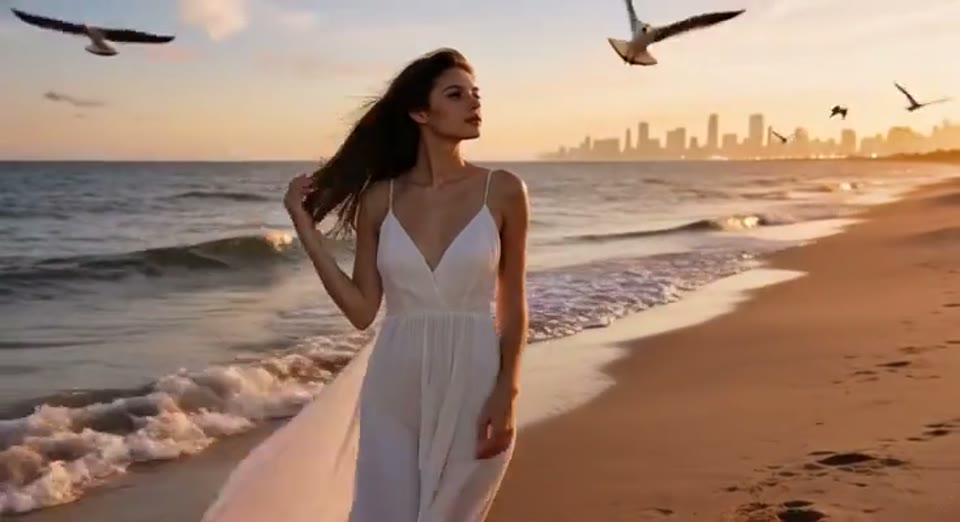
Day to Night Effect
Create a day to night effect video from one photo on EveryGen. Animate golden hour, sunset and night lights while keeping the scene and framing consistent.
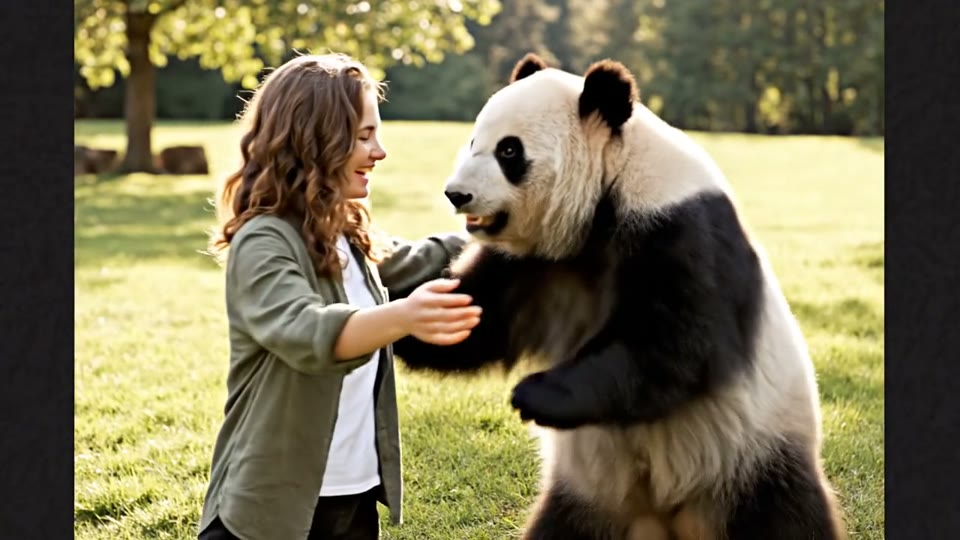
AI Panda Hug Video
Create a heartwarming AI panda hug video from one photo on EveryGen. Add a gentle panda embrace, bamboo scenery and original sound in your chosen format.
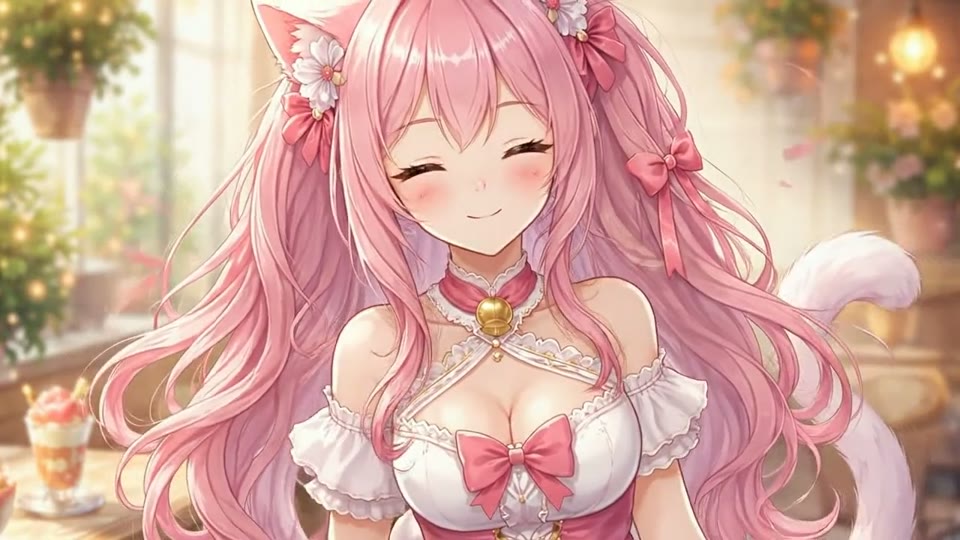
Live 2D Animations
Create Live 2D-style animation from a portrait or character image with EveryGen. Add blinking, breathing and gentle head motion while preserving the visual style.
STORM II AI Video: Questions Answered
What to upload, what it costs and what to expect from the template.
Create Your Own STORM II AI Video
One photo is all a crowd-dance clip needs: upload your main character and let the template put them in the eye of the storm.
Make my STORM II AI video