
AI Minecraft Video Maker
Only upload photos of yourself or of people who agreed to take part.
Your character. A whole new block world.
AI Minecraft Video Maker: Turn a Photo into a Block-World Adventure
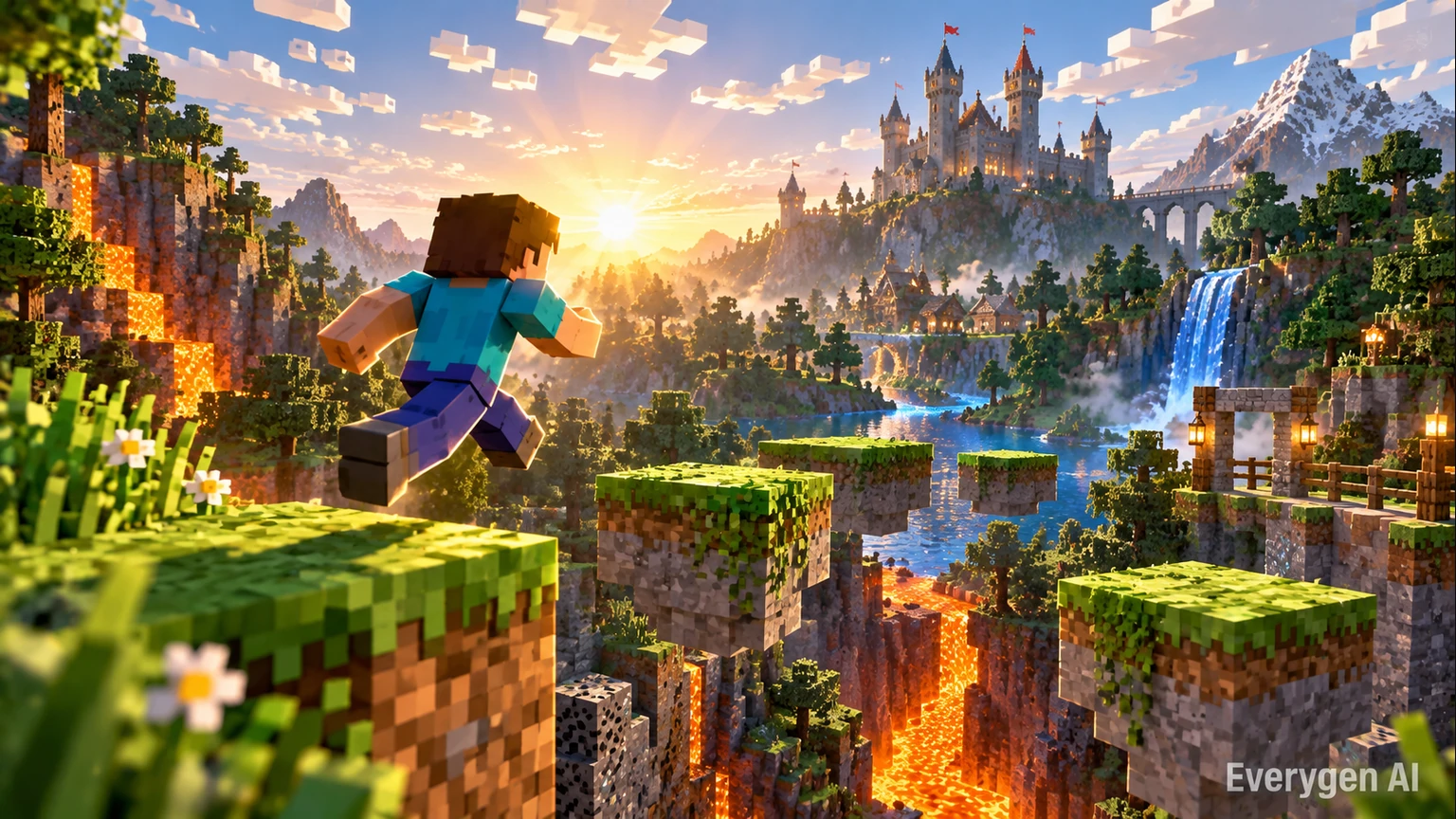
A Minecraft-style video brings familiar faces into a world built from blocks. Upload one character or scene photo, and this template reimagines its main subject with voxel geometry, pixel textures and a short parkour adventure. Hair, clothing colors and the subject’s silhouette guide the block character while grass, stone and trees create an original game-like setting.
No prompt writing or animation setup is required. Choose 16:9, 9:16 or 1:1, 480p or 720p, and 5, 10 or 15 seconds. Preview the sample, check the exact credit cost in the workbench and generate your own take with original sound. Browsing is free; each generation uses credits, and the finished video is available as an MP4 in My Creations.
- One photo to block-world video
- Voxel character styling
- Parkour camera movement
- Original adventure sound
How to Use the AI Minecraft Video Maker Template
Go from a still image to an AI video in four simple steps.
Upload your image
Choose a clear person, character or scene with a readable silhouette and distinctive colors.
Choose your settings
Choose 16:9, 9:16 or 1:1, 480p or 720p, and 5, 10 or 15 seconds.
Check the cost and generate
Review the credit quote next to Generate. The preset directs the scene, motion, camera and original audio; you can follow progress in the workbench.
Preview, download and share
Review the subject and motion, then download the finished MP4. Regenerating creates another take and uses credits again.
Minecraft-Style AI Video: Voxel Characters and Parkour
Explore the visual details and workflow behind the AI Minecraft Video Maker template.
Block-World Parkour from Your Photo
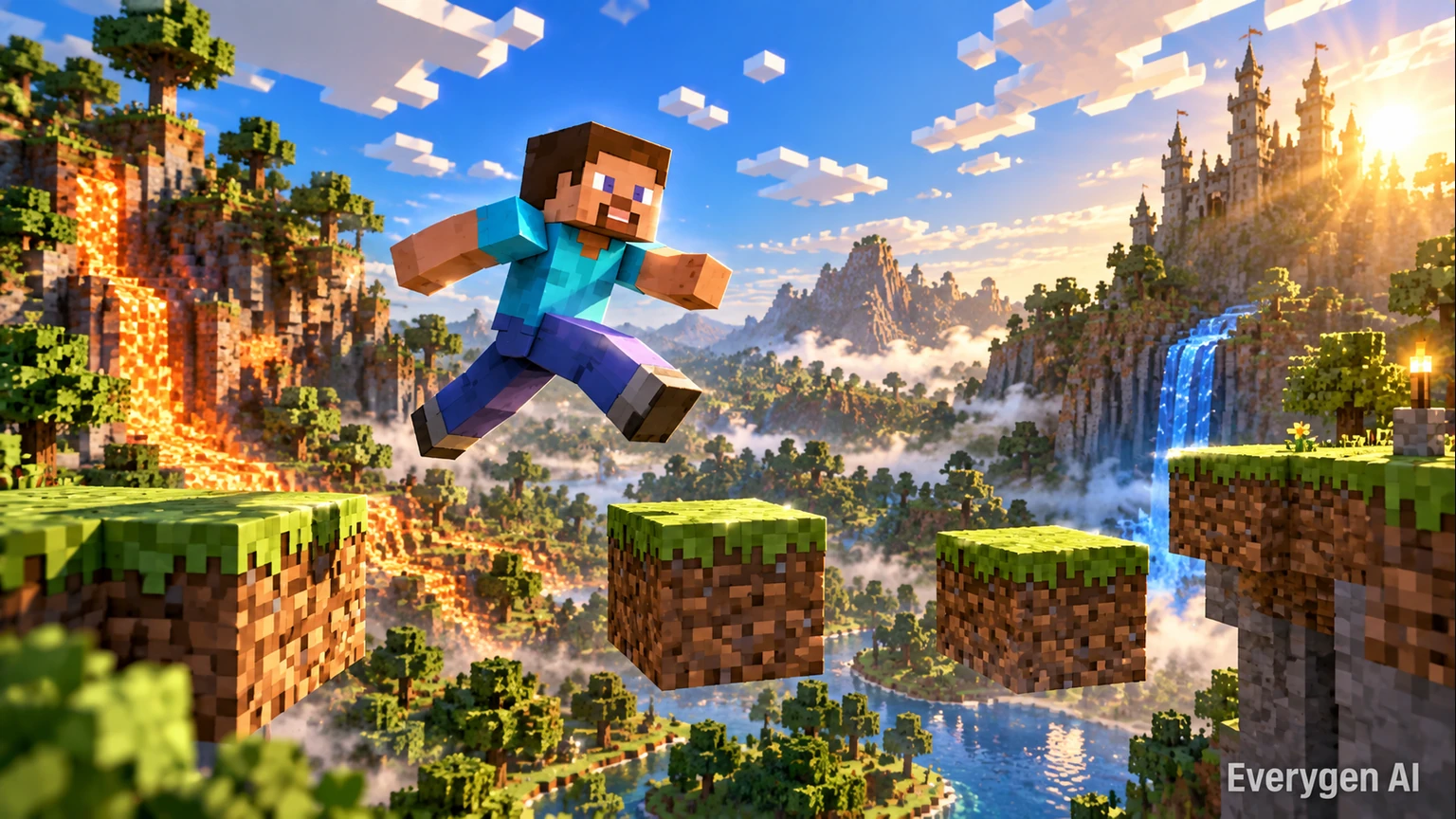
A recognizable voxel character runs and jumps between floating blocks. The template sets a readable route, smooth tracking camera and clear landing pose, so one still image becomes a short action scene.
Start with a reference that shows the character’s full silhouette and leaves space around the feet. Contrasting clothing colors give the template clearer visual cues when it translates a person into a block character.
The built-in direction combines a short run, a jump between floating platforms and a confident landing in one camera move. This makes the clip useful as an adventure opener or a self-contained parkour moment. Choose a short duration for a quick reveal, or give the movement more time with a longer supported setting.
Original Characters in Pixel-Textured Scenes
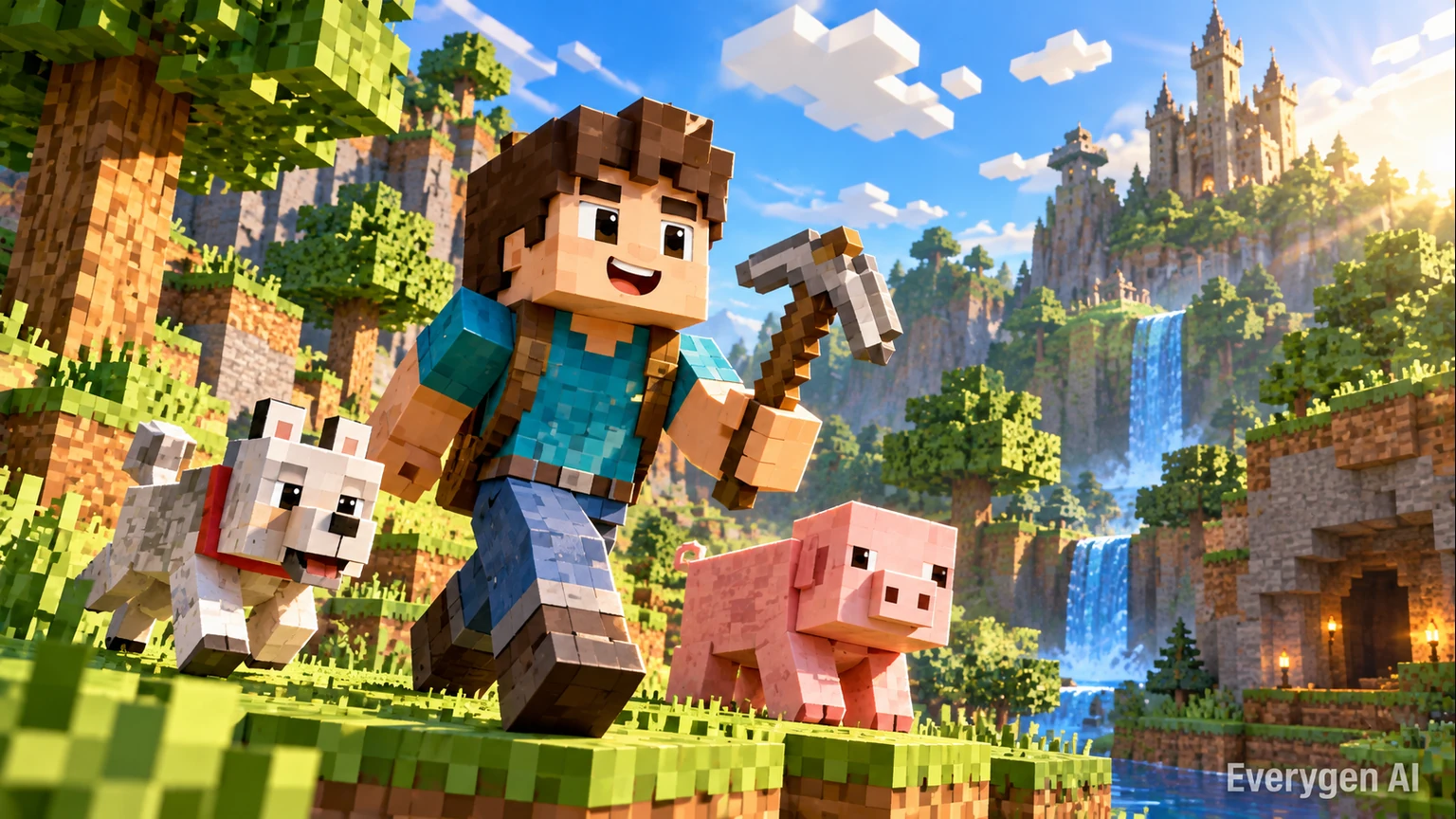
Use a selfie, costume photo or original character reference. The AI translates distinctive colors and shapes into cubic styling while building coherent grass, stone and tree textures around the subject.
A costume, a hairstyle or a distinctive color combination can become the anchor for a new character. Simple references are easier to read than crowded group photos, especially when the template needs to build a new environment around the subject.
The world is generated as a coherent scene rather than assembled from a game recording. Cubic terrain, pixel-textured surfaces and warm directional light establish the look, while the camera stays close enough for the character’s movement to remain understandable. Keep your original reference for later takes if you want to explore a recurring visual identity.
Short Minecraft-Style Clips for Every Feed
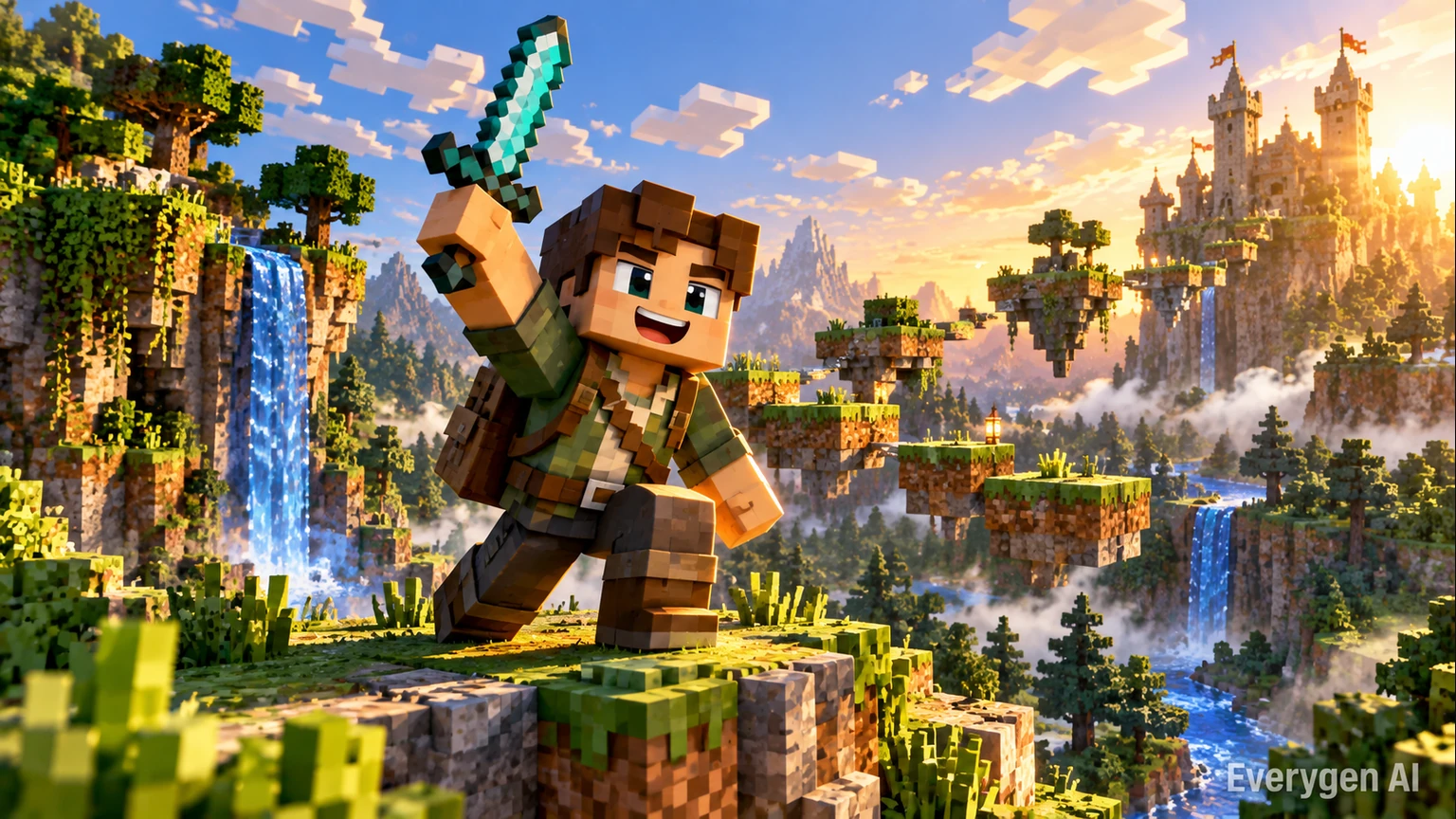
Choose vertical, landscape or square output for Shorts, Reels or a wider edit. Original adventure music, footsteps and landing sounds accompany the video. This is an AI-generated scene, rather than captured game footage.
Match the output shape to the place where the clip will appear. A vertical take emphasizes the character and the height of a jump; a wider frame gives the block landscape more room. Square output works well when the motion needs to sit beside other content in a feed.
The preset includes its own sound direction, so the exported video can serve as a complete short moment or as one piece of a larger edit. Review the character’s landing, the camera path and the relationship between foreground and background before choosing the take you want to keep.
Block-World Animation for Gaming Clips and Adventure Stories
Find a setting for the effect in your next post, story or creative project.
Short-Form Creator Clips
Introduce your own block character in a short, readable parkour clip for a gaming-themed feed.
Gameplay-Style Promos
Explore a voxel look for an original project teaser, channel opener or community announcement.
Education and Demonstration
Use a block-world sequence to illustrate movement, spatial relationships or a simple story idea.
Story and Challenge Series
Keep a recurring character reference and generate separate takes for an adventure or challenge series.
Six Ideas for Your Next AI Minecraft Video Maker
Start with a clear source image and give each take one simple purpose.
Selfie to Voxel Hero
Try this direction with your own image and the AI Minecraft Video Maker preset. Compare the source and generated motion in a short post or edit.
Floating-Block Parkour
Try this direction with your own image and the AI Minecraft Video Maker preset. Compare the source and generated motion in a short post or edit.
Forest Adventure Opener
Try this direction with your own image and the AI Minecraft Video Maker preset. Compare the source and generated motion in a short post or edit.
Costume Character Reveal
Try this direction with your own image and the AI Minecraft Video Maker preset. Compare the source and generated motion in a short post or edit.
Square Channel Teaser
Try this direction with your own image and the AI Minecraft Video Maker preset. Compare the source and generated motion in a short post or edit.
Before-and-After Remix
Try this direction with your own image and the AI Minecraft Video Maker preset. Compare the source and generated motion in a short post or edit.
Image Tips for a Better AI Minecraft Video Maker
A readable subject and a clean image give the template better visual guidance.
Works best
- A full-body reference with distinctive outfit colors
- Sharp detail and balanced lighting
- One main subject with room for movement
- Images you own or have permission to use
Avoid
- Blurred, dark or heavily filtered images
- Cropped faces, hands or important outlines
- Crowded scenes with overlapping subjects
- Photos used without the person’s permission
What Creators Say About EveryGen
Feedback from EveryGen’s existing image-to-video workflow, which also powers photo-based creative effects.
We now produce campaign videos from existing image assets in a fraction of the time.
Sophie L., Content Marketer
Sophie L.
Content Marketer
Image-to-video helped us upgrade product pages without expensive shoots.
Ryan T., E-commerce Operator
Ryan T.
E-commerce Operator
The prompt controls are practical and outputs are strong for rapid iteration.
Mia W., Creative Producer
Mia W.
Creative Producer
More AI Video Templates Like AI Minecraft Video Maker
Try another trending effect with the same photos.
Sketch to Video AI
Turn a sketch, drawing or line-art image into an animated video with EveryGen. Preserve the composition and art style with gentle motion and original sound.
Live 2D Animations
Create Live 2D-style animation from a portrait or character image with EveryGen. Add blinking, breathing and gentle head motion while preserving the visual style.
Hotel Lobby AI Video
Two photos become a baroque rap duet on an orange stage.
AI Rap Duo Video
You and a friend trade verses in bold streetwear.
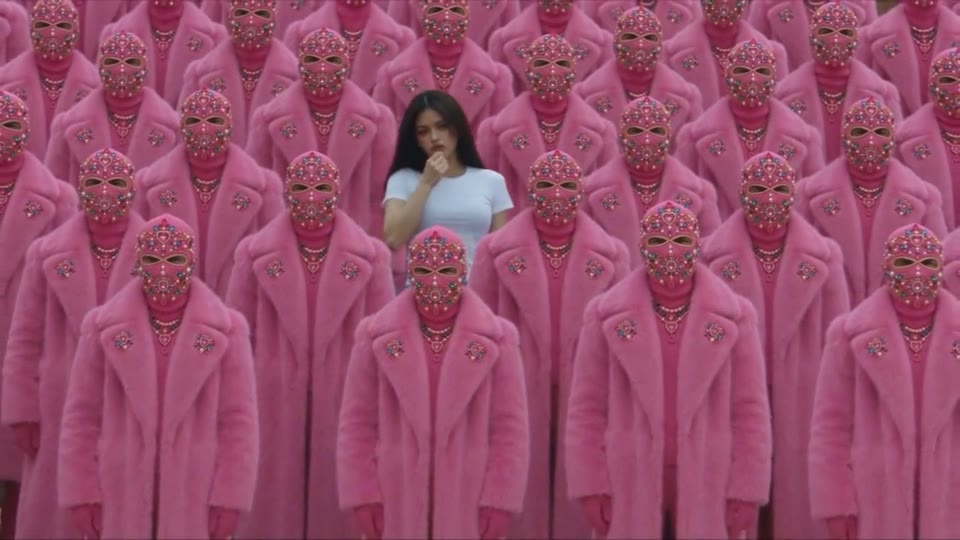
STORM II AI Video
Your character leads a surreal pink-crowd dance.
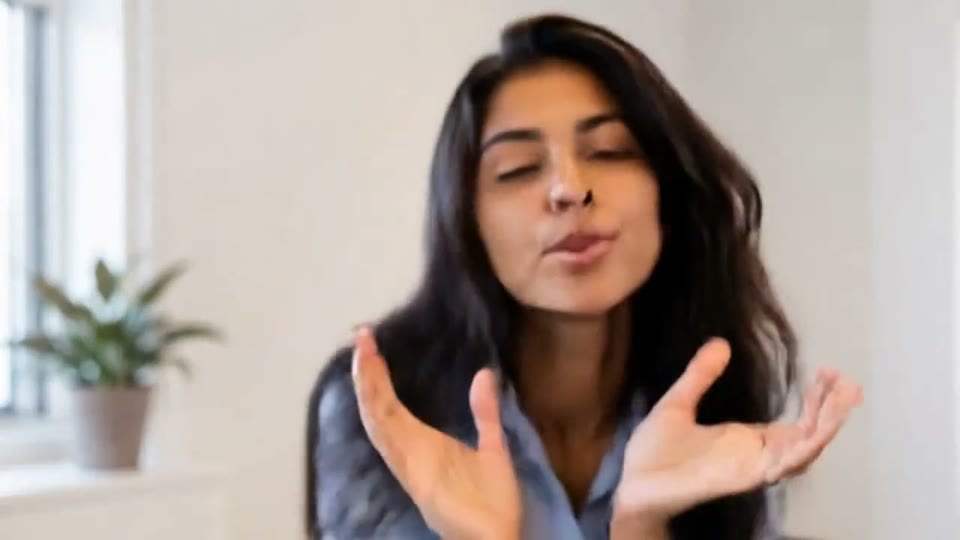
AI Face Dance Generator
A portrait comes alive with a playful face-and-hands dance.
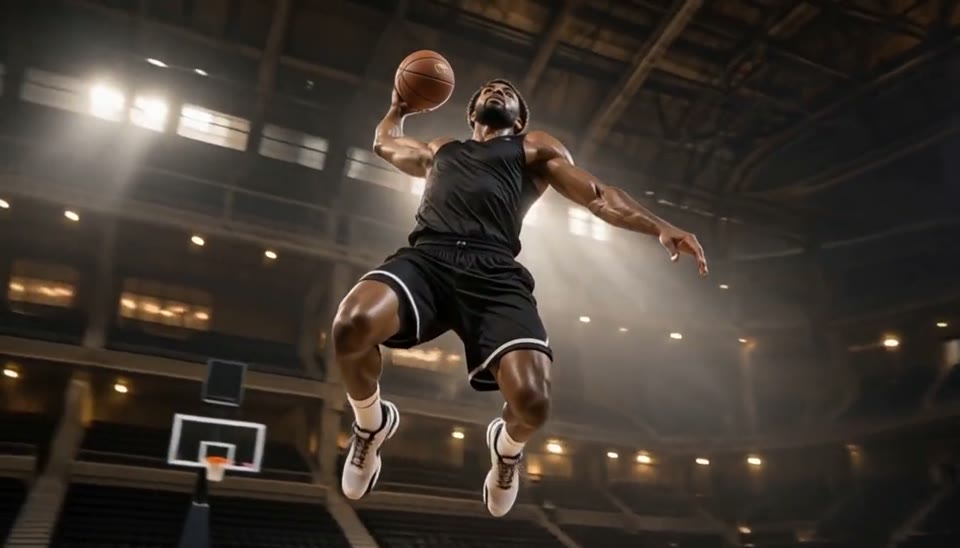
Bullet Time Video
Freeze an action pose while the camera orbits around it.
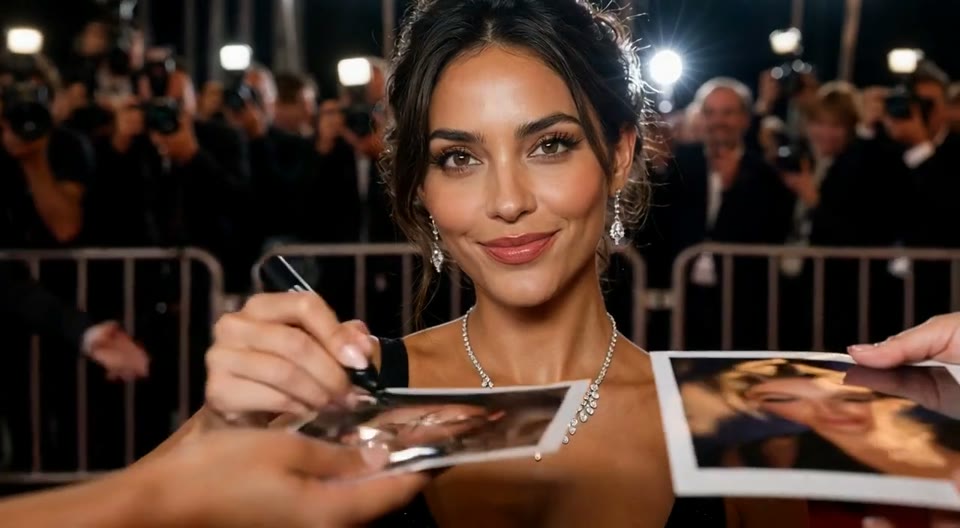
AI Red Carpet Video
Create an AI red carpet video from one portrait. Add elegant eveningwear, paparazzi flashes and a gala entrance with the EveryGen video template.
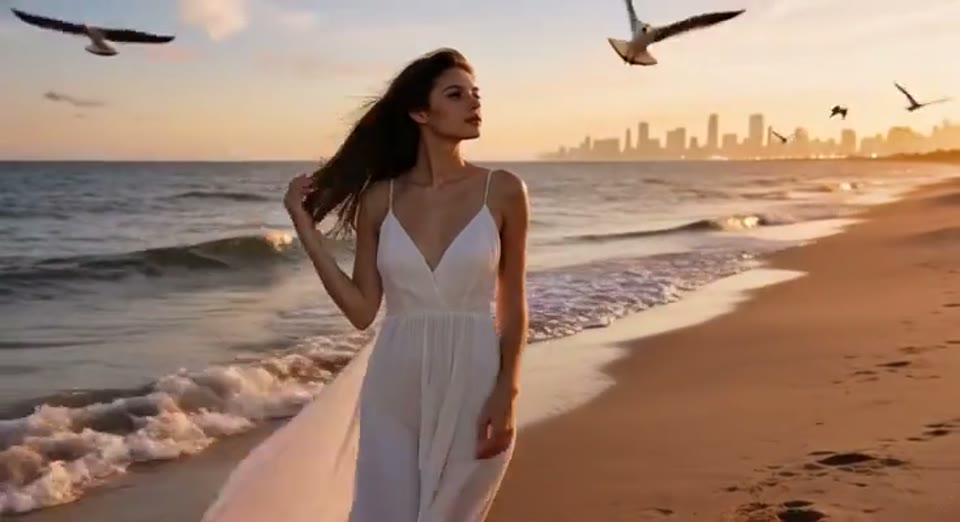
Day to Night Effect
Create a day to night effect video from one photo on EveryGen. Animate golden hour, sunset and night lights while keeping the scene and framing consistent.
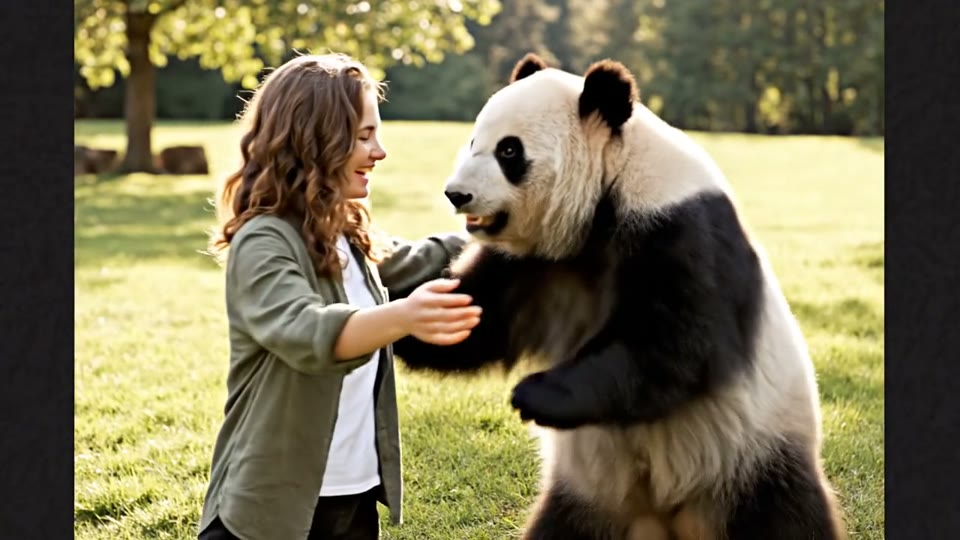
AI Panda Hug Video
Create a heartwarming AI panda hug video from one photo on EveryGen. Add a gentle panda embrace, bamboo scenery and original sound in your chosen format.
AI Minecraft Video Maker FAQ: Your Questions Answered
Learn about source images, output settings, credits and sharing.
Create Your AI Minecraft Video Maker Today
Choose a clear image, preview the effect and make a short video with original sound. The workbench shows the exact credit cost before you generate.
Create AI Minecraft Video Maker