

Clean Images in One Step
Upload a photo or graphic and the image editor removes visible watermarks, logos and overlaid text, then fills the area so the edit is hard to spot.
- Removes logos and text overlays
- Keeps the rest of the image unchanged
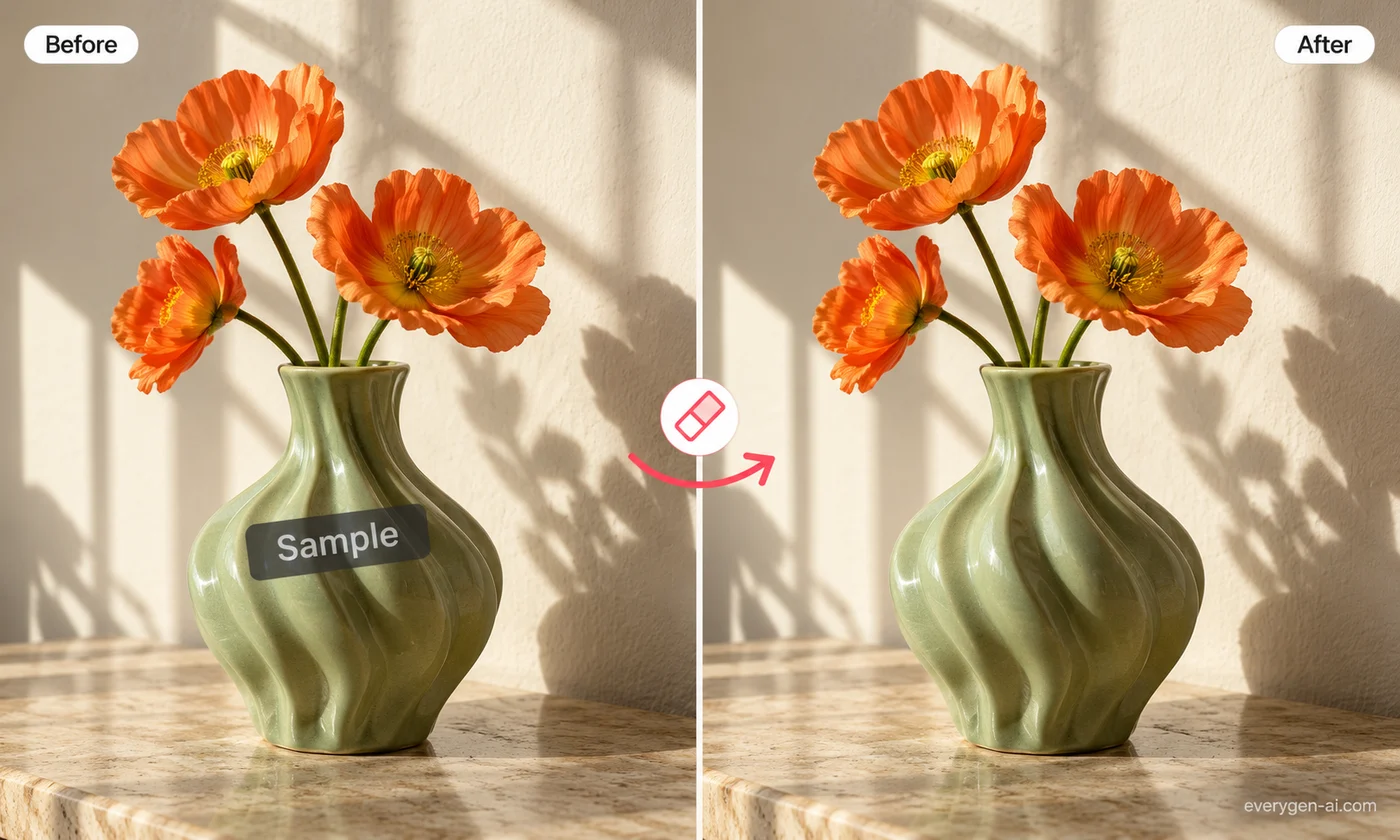
Remove text and logo overlays from images and short videos you own.
Inputs, options and results.
Upload a photo or graphic and the image editor removes visible watermarks, logos and overlaid text, then fills the area so the edit is hard to spot.
Switch to video for clips of 4 to 30 seconds. The same video eraser used by EveryGen keeps camera movement, timing and other subjects intact.
The tool is meant for your own material: AI generations you created, exports from your projects, or files you have permission to edit. It is not for removing other owners’ copyright notices.
Choose your settings, then review the result.
Select the media type and upload content you have the right to edit.
Optionally describe the watermark, for example “text in the bottom-right corner”.
Generate, compare the result with the original and download it.
Typical jobs for content you own.
Clean preview marks or stray text from images and clips you generated.
Remove a logo you added to your own footage before reusing it.
Hide on-screen labels or timestamps in your own recordings.
Formats, credits and practical limits.
Only from content you own, created or have permission to edit. Removing someone else’s watermark or copyright notice can infringe their rights.
Images are priced like a 2K image edit. Videos are priced per second of the clip, the same as the video eraser. The exact credit cost is shown on the button before you start.
Clips between 4 and 30 seconds, up to 25 MB. Trim longer videos first.
Large or busy watermarks can leave traces. Describe the mark’s position and try again, or crop the area if needed.
If a generation fails, the reserved credits are returned automatically.
Upload content you have the rights to edit and review the result above.