

Describe the Object You Want Removed
Identify the unwanted object by appearance and position. A precise instruction helps distinguish the distraction from people or details you want to keep.
- Name one clear target
- Describe its location
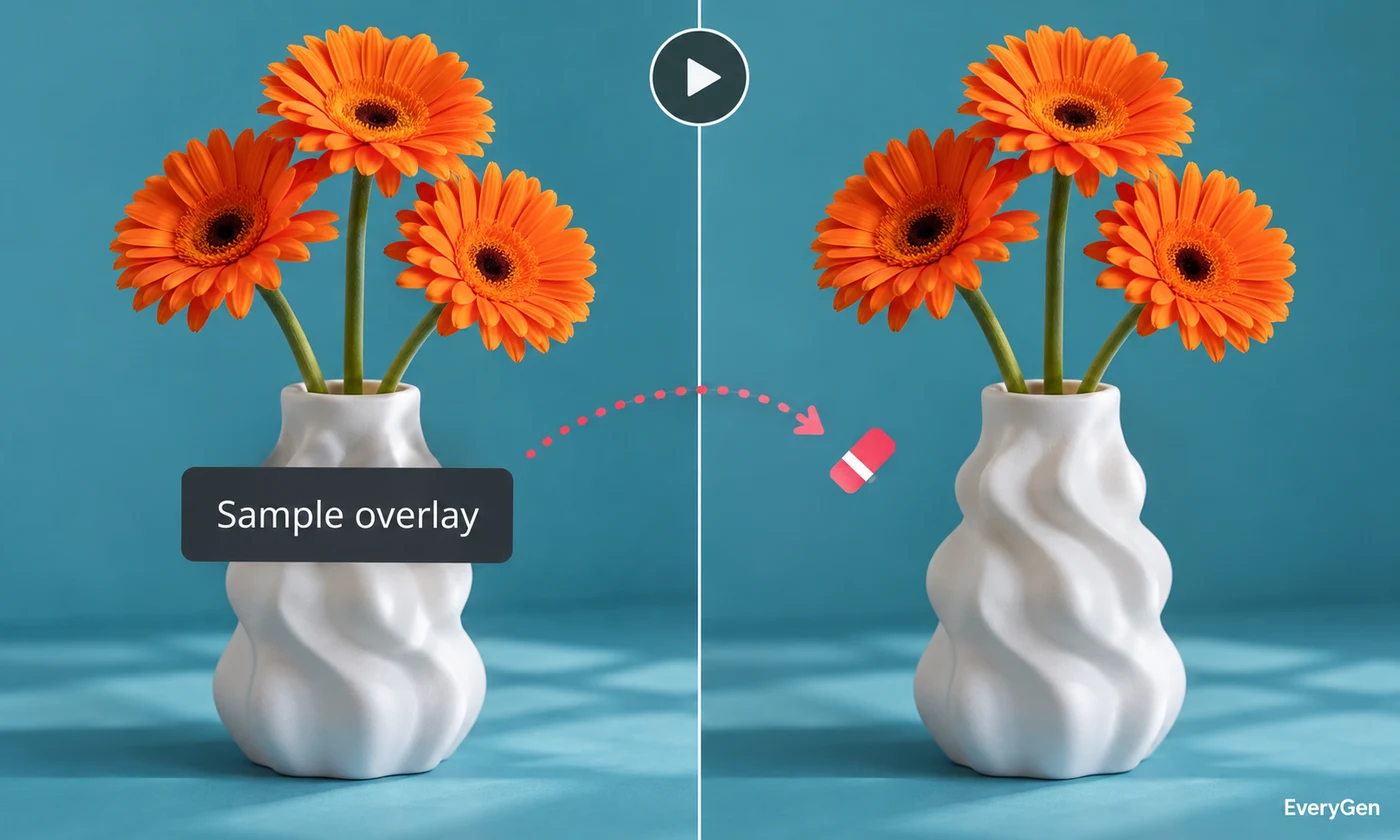
Clean up a distracting object in a short clip with an AI video eraser. Describe what should disappear and check the surrounding scene across the generated result.

See what the tool changes and how to get a useful result.
Identify the unwanted object by appearance and position. A precise instruction helps distinguish the distraction from people or details you want to keep.

The tool generates replacement visual content where the object appeared. Occlusion and camera movement affect how convincingly the surrounding scene can be reconstructed.
Watch the entire output to look for flicker or changed nearby details. Generative editing can alter more than the target, so compare important areas with the source.
Work through these three steps in the editor above.
Upload a short source video.
Describe the unwanted object and its position.
Generate and inspect the complete edited clip.
Choose a starting point that matches the work you want to finish.
Reduce background distractions around the item you are showing.
Try cleaning small intrusions from an otherwise useful scene.
Prepare a less distracting background for a visual example.
Practical answers about inputs, results and limitations.
Describe the target in the prompt, including its appearance and location.
It can attempt the edit, but complex motion and occlusion can create artifacts.
That is not guaranteed. Generative editing may change nearby details or movement.
Use the video background remover when you want to isolate the main subject.
Only edit content you own or are authorized to modify; do not remove attribution without permission.
Bring your own source and review the result in the editor above.