

Enlarge Existing Video Footage
Upload the clip you want to present at a larger size. Upscaling estimates additional detail, so the source still sets the limits of what can be recovered.
- Start from original footage
- Increase presentation size
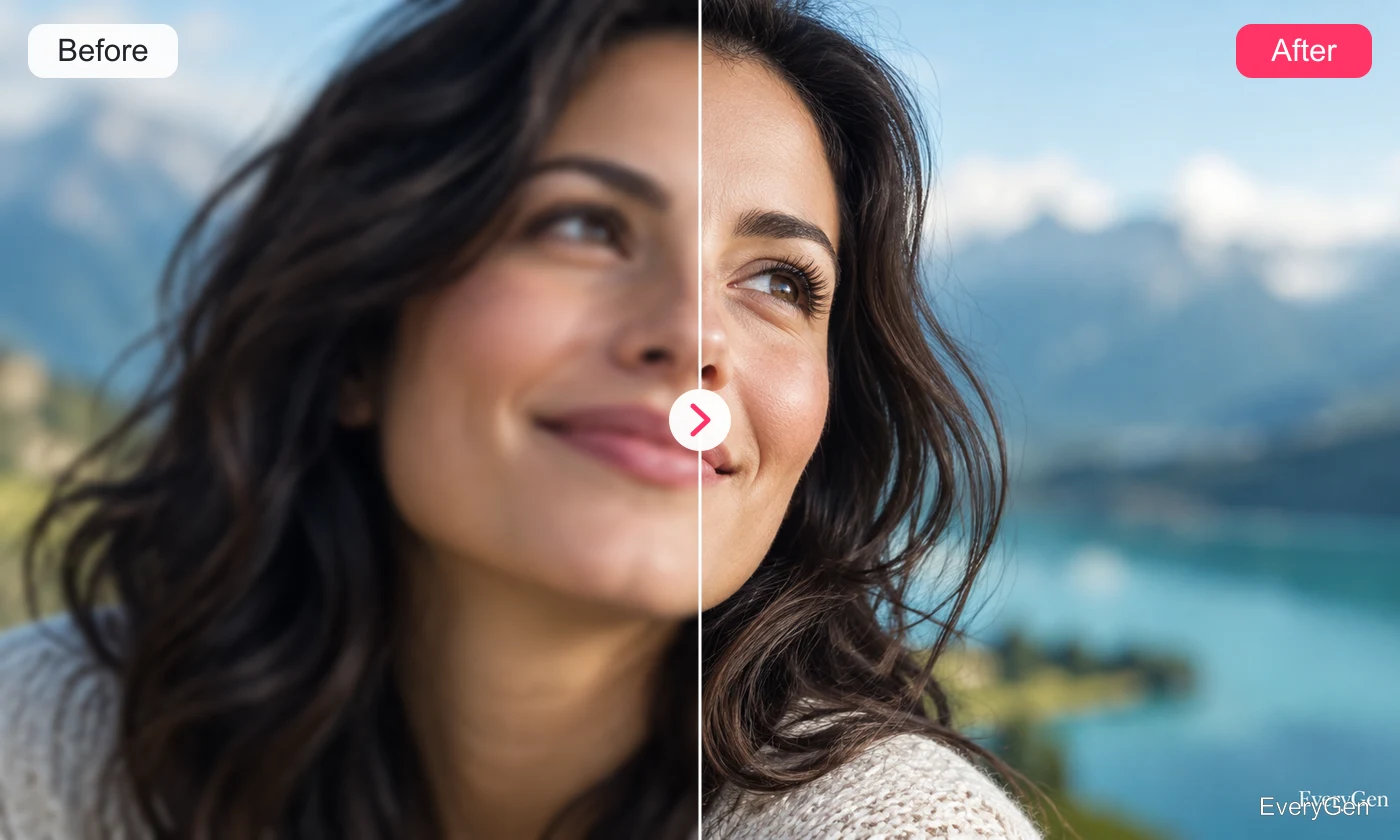
Give smaller footage more room on larger screens with an AI video upscaler. Create an enlarged version and compare detail, edges and movement against your original.

See what the tool changes and how to get a useful result.
Upload the clip you want to present at a larger size. Upscaling estimates additional detail, so the source still sets the limits of what can be recovered.

Look beyond a single sharp frame when judging the result. Check moving edges and fine textures for a consistent appearance throughout the clip.
Use the enlarged clip in presentations or a wider editing canvas. Keep an original copy so you can choose the version that looks best in context.
Work through these three steps in the editor above.
Upload the clearest original video available.
Run the video upscale process.
Compare motion and detail, then save the result.
Choose a starting point that matches the work you want to finish.
Give small clips a larger canvas in decks and displays.
Prepare older footage for a new edit with modern material.
Review small details when a clip needs a larger presentation.
Practical answers about inputs, results and limitations.
No. It estimates detail and cannot reliably reconstruct information absent from the source.
Severe blur may remain. Compare moving sections before using the result.
No. Use the video resizer to change the frame shape or fit.
Use the best original available; repeated compression can limit the result.
Not on every clip. Inspect textures, faces and movement at the intended display size.
Bring your own source and review the result in the editor above.