

Improve the Clarity of Existing Clips
Enhance an uploaded video rather than rebuilding the scene from a prompt. The result aims for clearer detail while your source remains the visual reference.
- Use existing footage
- Review retained details
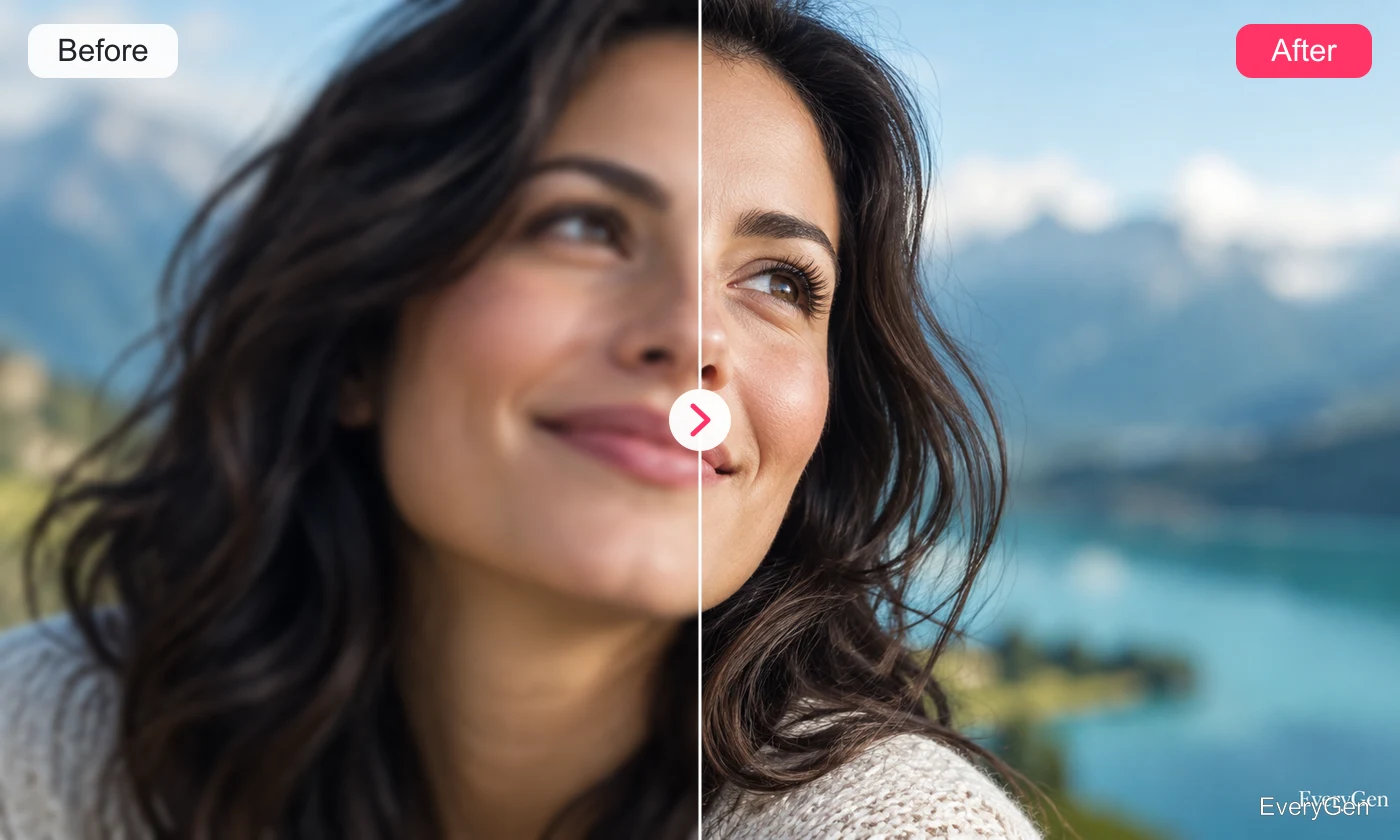
Improve the presentation of existing footage with an AI video enhancer. Choose the output resolution shown in the editor, then check whether the added clarity suits your scene.

See what the tool changes and how to get a useful result.
Enhance an uploaded video rather than rebuilding the scene from a prompt. The result aims for clearer detail while your source remains the visual reference.

Select from the output resolutions available in the editor. A larger output can help presentation, but it cannot guarantee accurate recovery of lost detail.
Review motion and textured areas as well as the opening frame. Compare against the source to spot overly smooth surfaces or altered small details.
Work through these three steps in the editor above.
Upload an existing video clip.
Choose an available target resolution.
Enhance and compare the downloaded result.
Choose a starting point that matches the work you want to finish.
Refresh clips you want to reuse in a new edit.
Improve the presentation of details in demonstrations.
Bring older clips closer to the look of newer footage.
Practical answers about inputs, results and limitations.
Use the target resolutions currently offered by the editor, including 1080p, 2K and 4K.
For direct control of those settings, use Smart color correction.
Results depend on the source; missing information and severe artifacts may remain.
Use the video resizer when you need a different aspect ratio or crop.
Compare fine textures, moving edges and facial details with the source before publishing.
Bring your own source and review the result in the editor above.