

Choose the Shape Your Project Needs
Select a vertical, square or landscape ratio from the editor. The new frame helps you prepare a version for a different layout or publishing destination.
- Prepare vertical video
- Create square or wide layouts
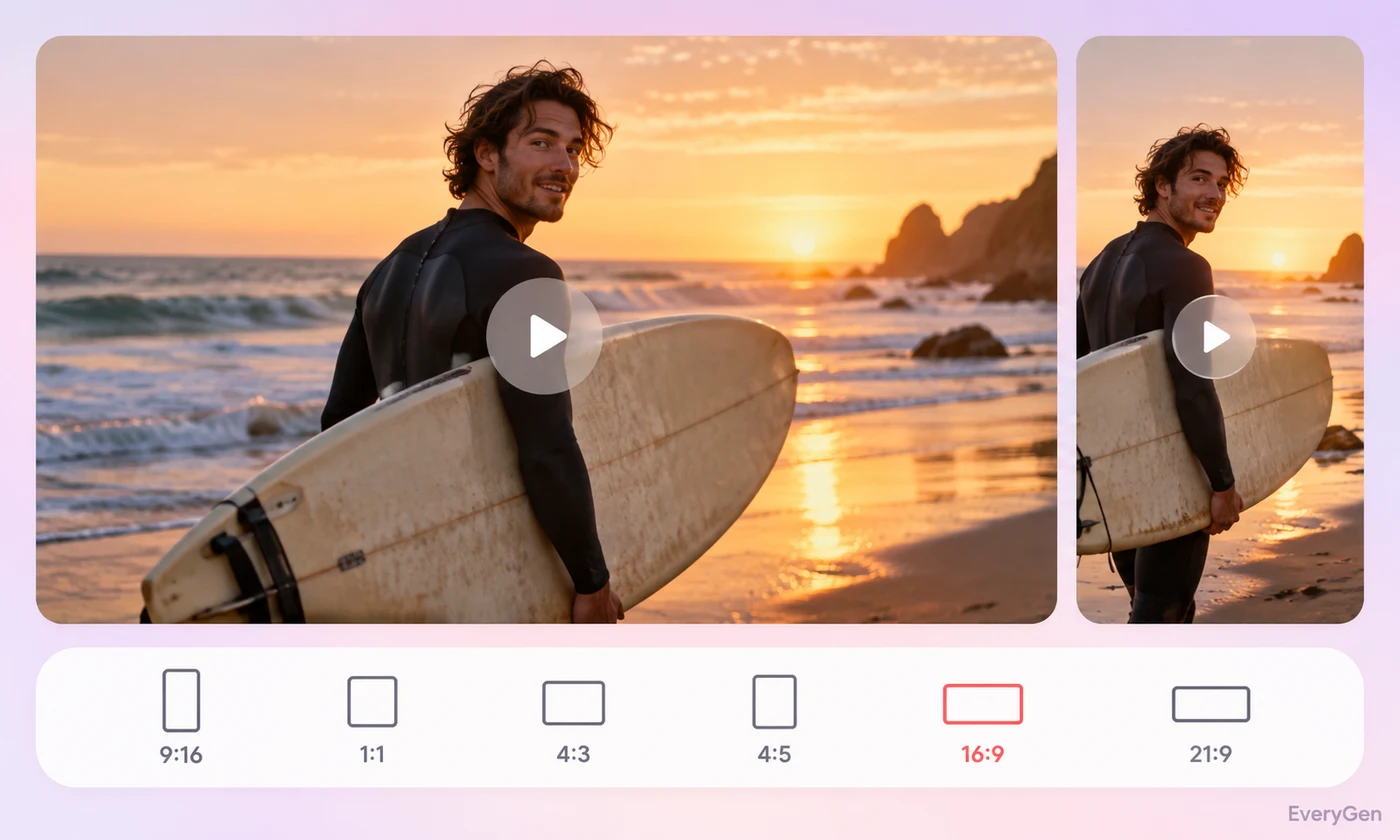
Adapt one clip to a new layout with this online video resizer. Choose an aspect ratio and decide whether to preserve the full frame with padding or fill the canvas by cropping.

See what the tool changes and how to get a useful result.
Select a vertical, square or landscape ratio from the editor. The new frame helps you prepare a version for a different layout or publishing destination.

Choose contain to preserve the complete picture inside the new canvas. Padding fills the unused space when source and output shapes differ.
Choose cover to fill the target frame by cropping the excess. Check subjects and on-screen text because content near the edges may be removed.
Work through these three steps in the editor above.
Upload the source video.
Choose an aspect ratio and contain or cover.
Resize and inspect subjects, text and edges.
Choose a starting point that matches the work you want to finish.
Create another frame shape for a different post layout.
Fit footage into the proportions of a slide or screen.
Prepare consistent video shapes across a content series.
Practical answers about inputs, results and limitations.
Contain keeps the full image with padding; cover fills the frame and crops excess areas.
No. Review framing yourself; this editor does not offer subject-tracking controls.
This editor uses its listed aspect ratios rather than custom width and height inputs.
No. Use a video upscaler when enlarging detail is your main goal.
Contain preserves the frame; cover may crop text, so inspect the result carefully.
Bring your own source and review the result in the editor above.