

Separate the Main Subject
Upload footage with a distinct subject and a readable outline. Clear contrast between the subject and background makes the separation easier to evaluate.
- Choose a clear subject
- Keep the outline visible
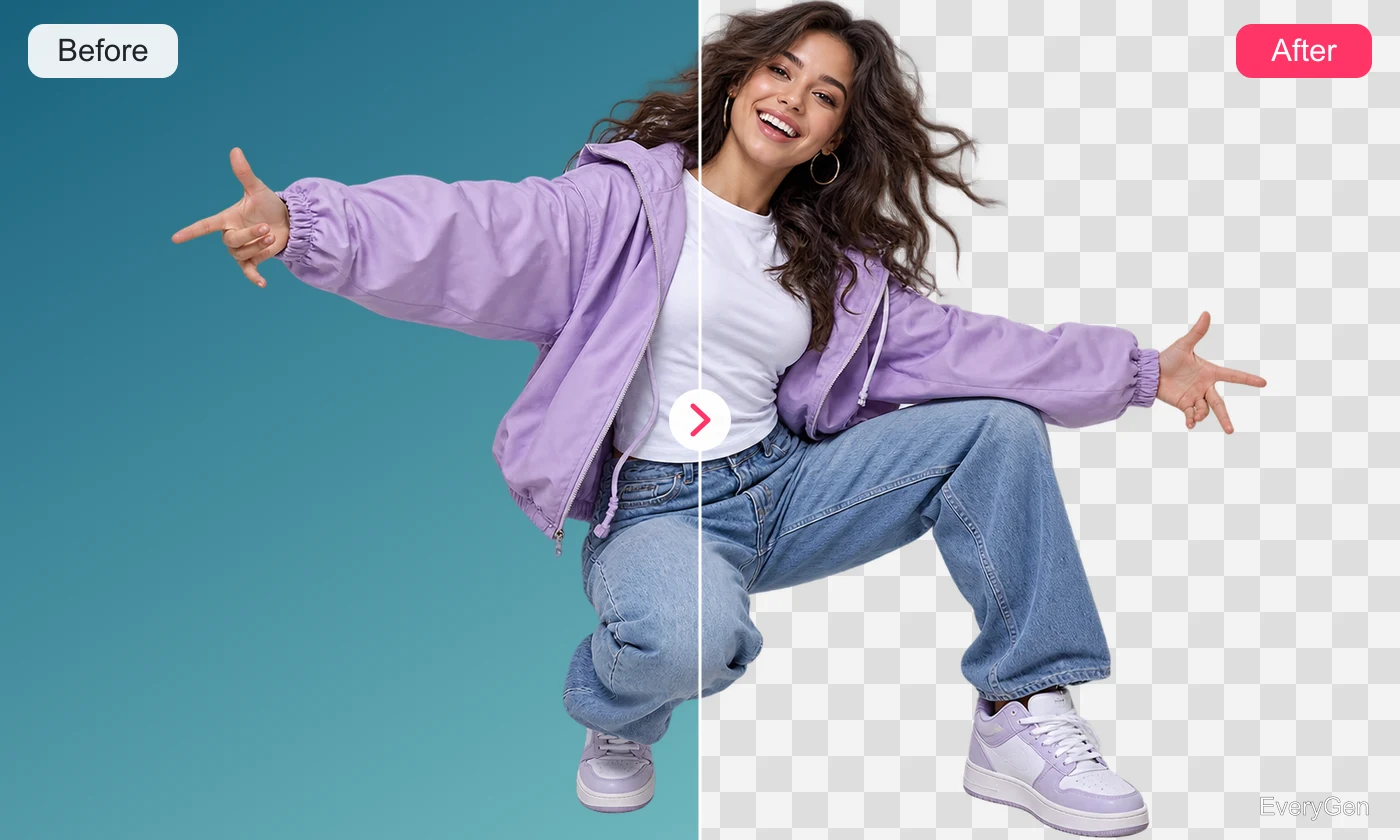
Separate a subject from its surroundings with an AI video background remover. Use a clear source and inspect moving edges before incorporating the result into another composition.

See what the tool changes and how to get a useful result.
Upload footage with a distinct subject and a readable outline. Clear contrast between the subject and background makes the separation easier to evaluate.

Inspect hair, hands and small gaps across several frames. Fast movement and motion blur can make these areas harder to separate cleanly.
Use the processed result as a starting point for a new layout. Check the actual output format and background behavior in your destination editor before building the final composition.
Work through these three steps in the editor above.
Upload a video with a clear subject.
Run background removal.
Inspect edges and test the result in your edit.
Choose a starting point that matches the work you want to finish.
Prepare a speaker for placement in a new visual layout.
Separate a product from a distracting surrounding scene.
Build a new setting around an isolated moving subject.
Practical answers about inputs, results and limitations.
A green screen is not required; a clear subject and simple background can help.
Do not assume that. Check the delivered file and compatibility with your editor.
This workflow removes the background; assemble a replacement in your editing workflow.
Hair, transparent objects, fast motion and similar foreground and background colors can cause artifacts.
Use the video eraser for a specific unwanted object rather than the whole background.
Bring your own source and review the result in the editor above.